
Help › Getting started
Getting started
Set up MowBill in about 15 minutes: your account, your company details, your team, and the app on your phone.
1. Sign up
- Go to app.mowbill.com/signup.php, or press Start free at the top of this page.
- Enter your email address and press Email me a signup link.
- Open the email from MowBill and click the link. If you don’t see it, check your spam folder.
- Fill in your name, your company name, your phone number and a password (at least 8 characters).
- Tick the box to agree to the Terms of Service, and press Create my account.
That’s it. You have 90 days free, and you don’t need a card to start. MowBill picks up your time zone from the device you sign up on, and you can change it later.
2. The Getting Started checklist
When you first log in, your Home page shows a Getting Started list. Each step links straight to the right page:
- Add your company address
- Set up sales tax
- Set prices for your services
- Add your first customer
- Invite your team
Steps tick themselves off as you do them. You can hide the list any time, and it goes away by itself once every step is done.
3. Your company details
Settings › Company › Edit Company
Your address and phone number appear on your invoices, so fill these in first. Then check the settings below them:
- Email: where MowBill sends you summaries, and where replies to your invoice emails go.
- Time zone: decides what “today” is for due dates, schedules and billing.
- Next invoice number: moving from another program? Set this to carry on from your last invoice number, so your numbers don’t start over.
- Recurring billing time: the time of day MowBill creates your regular customers’ invoices. You get a summary email after each run.
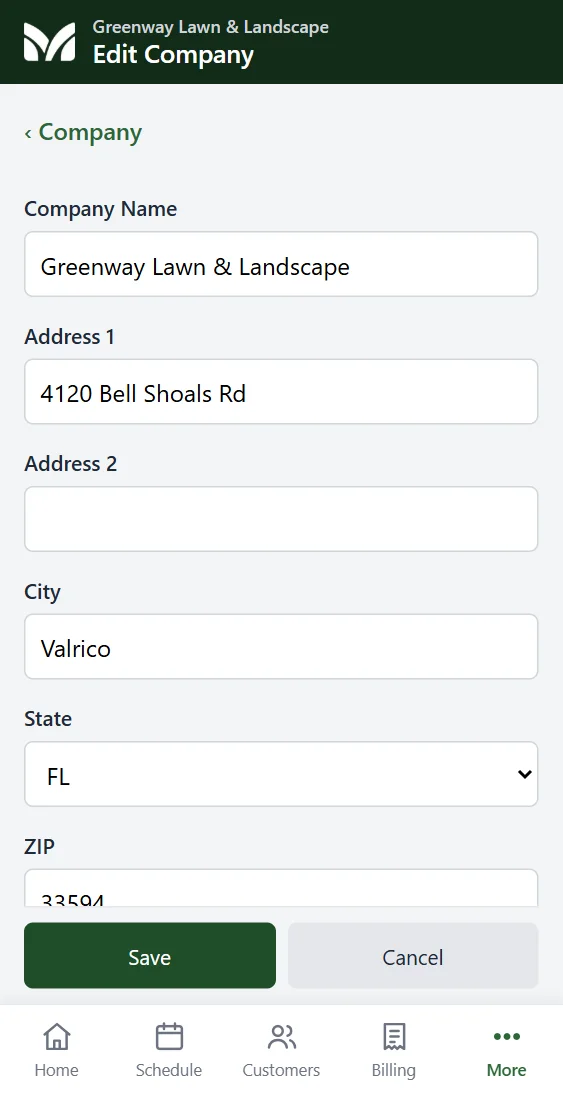
Only an Admin can change company details. You’re an Admin, because you created the account.
4. Your logo
Marketing › Your Page & QR Codes › Edit
Upload your logo here. MowBill puts it on your business page, your flyers and your business cards.
5. Add your team
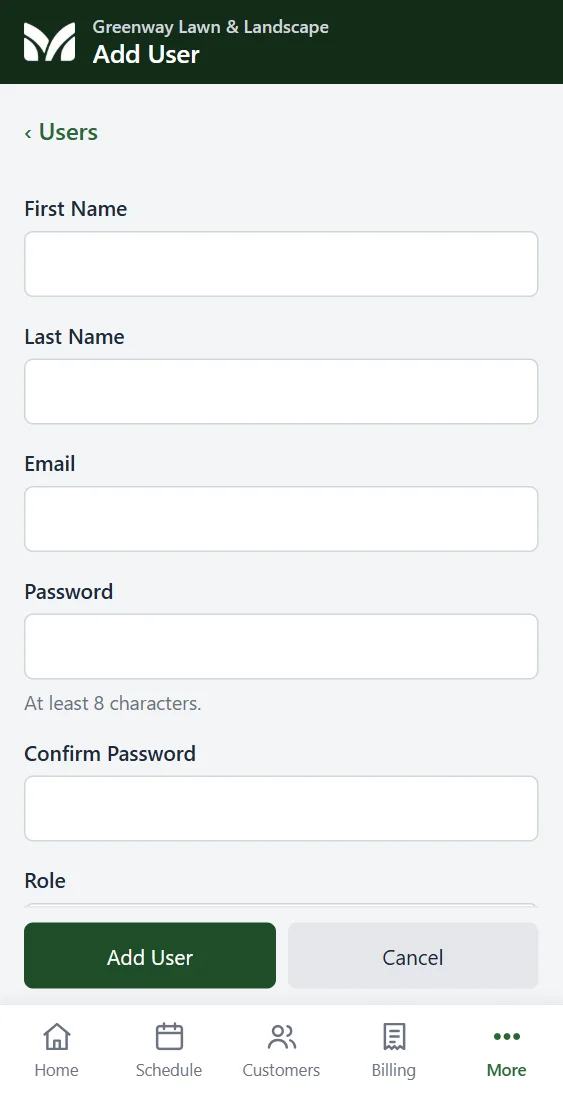
Settings › Users › Add User
Add everyone who works with you. There’s no charge per user.
- Enter their first and last name and their email address. They log in with that email.
- Choose a password for them (at least 8 characters). Give it to them yourself; MowBill doesn’t email it.
- Choose their role (see below) and press Add User.
Each role decides what a person sees:
| Admin | Everything, including reports, company settings, users, online payments and your subscription. Usually the owner. |
|---|---|
| Office | Customers, billing, payments, expenses, marketing, and billing setup like products and sales tax. No reports, and can’t add users or change company details. |
| Supervisor | A crew leader. Sees the schedule and the day’s work, and can text estimates. No money pages. |
| Crew / User | Their day’s schedule and the visits they complete. No money pages. |
Crew leaders must be Supervisors (or Admins). Under Settings › Crews you set each crew’s leader, and choose whether crew leaders can see customers’ phone numbers and your equipment.
When someone leaves, edit their user and untick Active. They can’t log in any more, but everything they did stays on record.
6. Put MowBill on your phone
MowBill runs in your phone’s web browser, so there’s nothing to download from an app store. Add it to your home screen and it opens full screen, like any other app. MowBill offers to do this the first time you open it on a phone.
iPhone or iPad (Safari)
- Open app.mowbill.com in Safari and log in.
- Tap the Share button in the toolbar. On newer iPhones, tap ··· first.
- Scroll down and tap Add to Home Screen, then Add.
Android (Chrome)
- Open app.mowbill.com in Chrome and log in.
- Tap Add on the MowBill banner, or open Chrome’s menu (⋮ at the top right) and tap Install app or Add to Home screen.
Show your crew how to do this too. It takes a minute, and they’ll stay logged in.
7. Turn on notifications
Settings › Notifications
MowBill can tell you on your phone when a customer pays online or when the month’s invoices are ready to send.
- On the phone or computer you want them on, open Settings › Notifications.
- Press Turn On Notifications and allow them when your phone asks.
- Press Send a Test to check it works.
Turn them on separately on each device you use. To choose who gets which notifications, an Admin can go to Settings › Automatic Notifications. You can also send your whole team a message on their phones from Settings › Send a Message.
On iPhone and iPad, notifications only work in MowBill on your home screen. Do step 6 first, open MowBill from its new icon, then turn notifications on.