
Help › Customers and properties
Customers and properties
A customer is who you bill. A property is a place you work. Most customers have one property, their home, but a customer can have as many as you need: a landlord with rentals, or a business with several sites.
1. Add a customer
Customers › Add Customer
- Enter a first and last name, a company name, or both.
- Add their email and phone number. The phone number lets you text them from MowBill.
- Enter their billing address, the one that goes on their invoices.
- If you mow at that same address, leave Create a property at this address named “Home” ticked. That saves typing the address twice.
- Fill in the billing details below (see the next section) and press Add Customer.
Only Admin and Office users can add or change customers.
2. Billing details
These settings on the customer form decide how their invoices go out:
- Invoice emails: where their invoices are emailed, if it’s not their main email. For example, a property manager’s office. Up to 5 addresses, separated by commas.
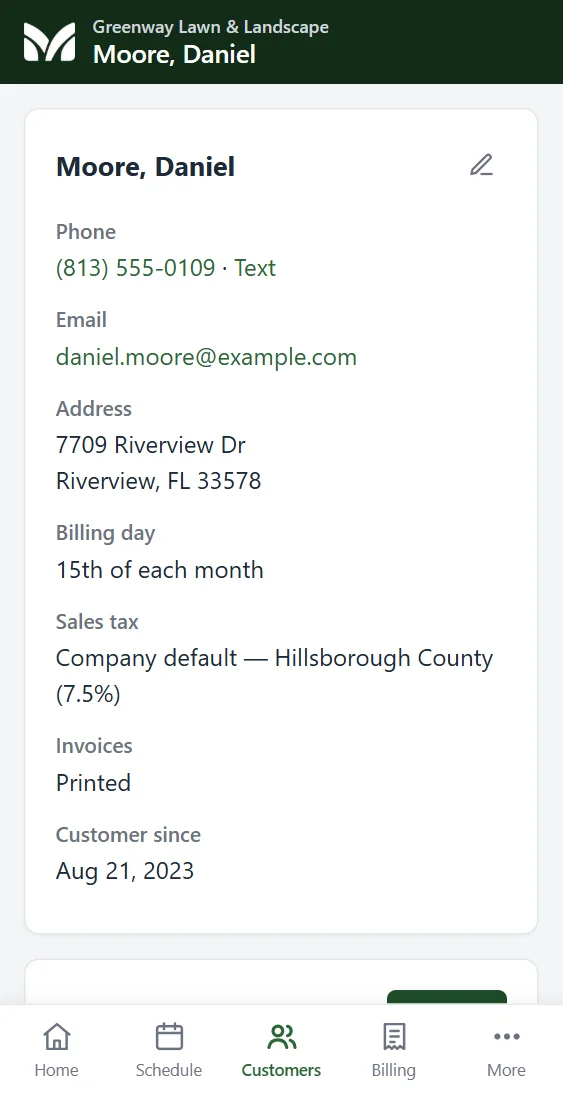
- Billing day: the day of the month their monthly invoice is made, from the 1st to the 28th.
- Customer since: when they started with you. It doesn’t have to be today.
- Beginning balance: moving from another program? Enter what they already owed you, so their balance is right from day one. For a credit, put a minus sign in front, like
-25.00. - Send invoices by: print, email, or both. MowBill uses this to sort each new invoice into the print pile or the email pile. Email needs an email address.
3. Sales tax and tax-exempt customers
Most customers use your company’s default sales tax, so you can leave Sales tax as it is.
- A different rate: pick another tax group, for example for a customer in another county. You set up tax groups under Settings › Taxes.
- Tax exempt: tick Tax exempt, for a church, school or government customer, and enter their exemption certificate number. None of their invoices will have sales tax.
A property can have its own tax group too. Invoices for that property then use it instead.
4. The customer page
Click a customer in the list to open their page. Everything about them is in one place:
- Account: their balance, what’s past due, and every invoice and payment. From here you can receive a payment, print a statement, copy their online pay link, or text them a reminder when they’re past due.
- Notes: anything worth remembering (see below).
- Recurring billing and one-time charges: what they’re billed regularly, and extras waiting to go on their next invoice.
- Properties: each place you work for them.
To change their details, press the pencil next to their name. The Customers list has a search box, and filters for past-due and inactive customers.
5. Properties
Customer page › Properties › Add Property
- Give it a name if it helps, like “Main house” or “Rental on Oak St”. You can leave it blank.
- Enter the address.
- Use Notes for what your crew needs to know: gate codes, pets, where to park.
- Press Add Property.
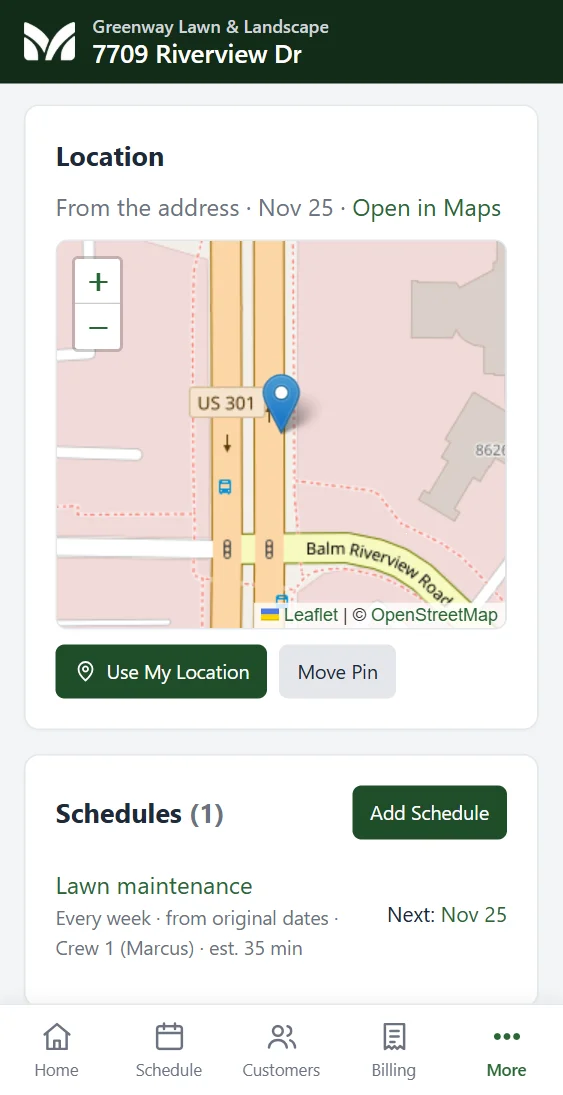
A property’s page shows its location, its schedules and every visit you’ve made there. Schedules and crews are in the next chapter.
6. Property locations
MowBill finds each property on the map from its address. Locations power the Nearby list on your crew’s phones and the Open in Maps links.
If a pin lands in the wrong place, which happens with new streets and rural addresses, fix it on the property’s page under Location:
- Use My Location: stand at the property and tap it. MowBill uses your phone’s GPS and asks you to confirm before saving. Anyone on your team can do this.
- Move Pin (or Place on Map if there’s no pin yet): drag the pin, or tap the map where the property is, then press Save Pin.
- Look Up Address: appears after you’ve moved a pin by hand, and puts it back where the address says.
Moving from another program with lots of properties? Settings › Property Locations finds every missing location in one go.
7. Notes
Customer page › Notes › Add Note
Keep a dated record of anything worth remembering: a complaint, a promise, a change they asked for. Each note has a date and a title, and can be tied to one of their properties. Notes stay on the customer’s page, newest first.
8. When a customer leaves
Edit the customer and untick Active. MowBill doesn’t delete customers, so their history stays for your records.
- They no longer get new invoices, including recurring ones.
- They drop off the Customers list. Tick Show inactive to see them again.
- Whatever they still owe stays on their account, and you can still record their payments.
If they move but you keep the customer, edit the old property and untick Active there instead. That pauses its schedules and removes its upcoming visits.