
Help › Equipment
Equipment
A record for every mower, truck and trailer: what it is, when it was serviced, and the part numbers you need at the parts counter.
1. Add a machine
Equipment › Add Equipment
- Give it a name or unit number, like “Mower 3” or “F-250”. Each name is used once.
- Add the make, model, year and serial number or VIN.
- Choose how its use is measured, hours or miles, and enter the current reading.
- Fill in what you know: purchase date and price, where you bought it, and when the warranty ends. For road vehicles, add the license plate and when the registration expires.
- Add a photo if you like, then press Add Equipment.
2. Log a service
Equipment page › Log Service
- Pick the date and the kind of service: oil change, blades, filters, repair, inspection, tires or other.
- Enter the hours or miles at the time. If it’s higher than the machine’s reading, the reading updates too.
- Add who did the work, what it cost and any notes, then press Log Service.
While you log a service, the machine’s part numbers show underneath, so the right filter or belt is right there.
The cost here is for the machine’s history only. It isn’t added to your expenses. Enter the receipt under Expenses as usual.
3. Part numbers
Equipment page › Parts › Add Part
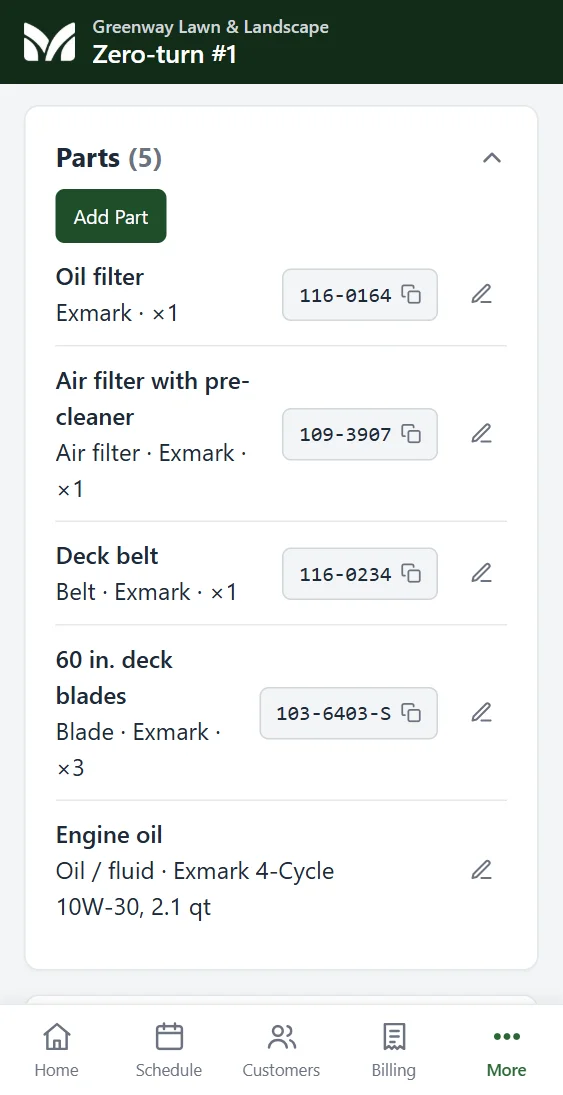
On a machine’s page, tap Parts to open the list. Save the parts each machine uses: oil, air, fuel and hydraulic filters, belts, blades, tires, spark plugs, batteries and fluids. Each part can have a description (“Deck belt”), a part number, a brand, a quantity and notes (“10W-30, 2.1 qt”).
- Tap a part number to copy it, then paste it into a parts website or show it at the counter.
- Got three of the same mower? Enter the parts once, then use Copy Parts on another machine to bring them over.
4. Find a machine or part
The search box on the Equipment list finds machines by name, make, model, serial number or plate, and also by part number, part description or brand. Type a filter number to see every machine that uses it.
5. Retire or sell a machine
Edit it, set the status to Retired, and enter the date and what you sold it for. It drops off the main list but keeps its history. The list’s filter shows retired machines too.
6. What crew leaders can see
Settings › Crews › See equipment and parts
Turn this on, and crew leaders (Supervisors) get Equipment in their menu, so they can look up a part number or a machine’s service history in the field. They see it without prices or costs, and they can’t change anything. Admin and Office always see equipment.